

Previous Story
The Overlooked Setting That Could Instantly Improve Your Speed
Posted On 22 Apr 2026
Comment: 0
Most people assume slow internet comes down to their plan, their provider, or their router. So they upgrade, restart things, or start comparing internet providers in my area—without realising there’s often a much simpler fix.
In many cases, your internet isn’t slow because of what you’re paying for. It’s slow because of how your network is managing traffic.
And that comes down to one often-overlooked setting: how your router prioritises devices and data.
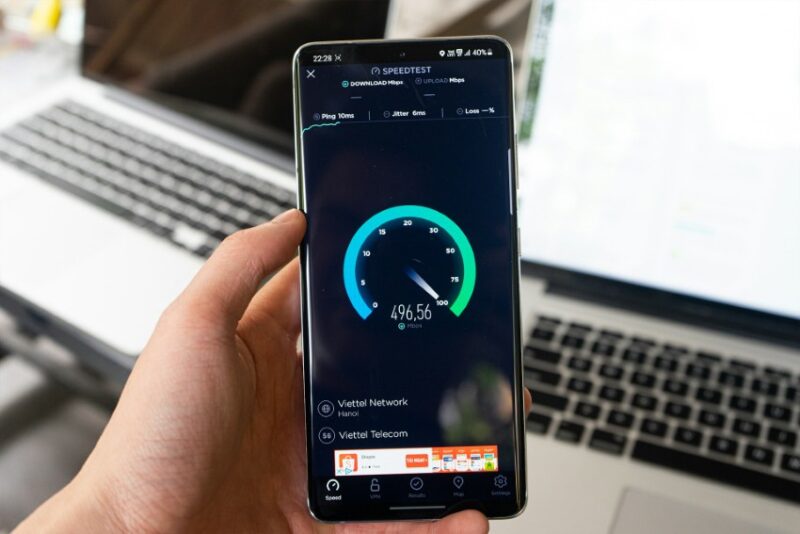
Once you understand this, you can improve your connection almost instantly—without spending anything.
The Setting Most People Ignore: QoS (Quality of Service)
QoS stands for Quality of Service. It’s a feature built into many routers that controls how your internet bandwidth is distributed.
Instead of treating every device and activity equally, QoS lets your router prioritise what matters most.
Why This Matters
Without QoS, your router divides bandwidth evenly—or inefficiently—between everything connected.
That means:
- A background download can slow down your video call
- Streaming on one device can impact gaming on another
- Multiple small tasks can overwhelm your network
QoS helps your router make smarter decisions.

How QoS Improves Your Speed (Without Changing Your Plan)
It doesn’t increase your total speed—but it makes your connection feel faster by reducing competition where it matters.
It Prioritises Important Activities
You can tell your router to prioritise:
- Video calls
- Gaming
- Streaming
- Work devices
This ensures critical tasks get the bandwidth they need first.
It Reduces Lag and Buffering
By controlling how traffic flows, QoS prevents less important activity from interfering with what you’re actively doing.
For example:
- A file download won’t disrupt your meeting
- Background updates won’t cause lag spikes

It Makes Performance More Consistent
Instead of sudden slowdowns, your connection becomes more stable—especially when multiple devices are in use.
How to Check If Your Router Has QoS
Not all routers have this feature, but many modern ones do.
Where to Look
- Log into your router settings (usually via a browser)
- Look for sections like “QoS”, “Traffic Control”, or “Bandwidth Management”
If you’re unsure, your router model name + “QoS settings” is usually enough to find instructions.
How to Set It Up (Without Overcomplicating It)
You don’t need to be technical to use QoS effectively.
Step 1: Identify Your Priority Devices
Think about what matters most in your home.
Examples:
- Work laptop
- Gaming console
- Smart TV for streaming

Step 2: Assign Priority Levels
Most routers let you choose:
- High priority
- Medium priority
- Low priority
Assign high priority to devices or activities where performance matters most.
Step 3: Keep It Simple
You don’t need to fine-tune everything.
Start with:
- 1–2 high-priority devices
- Everything else left as default
Even this small change can improve performance noticeably.
Other Overlooked Settings That Help
While QoS is the biggest win, a few other settings can also make a difference.
Automatic Channel Selection
Your router may be set to a crowded Wi-Fi channel.
Switching to a less congested channel can:
- Reduce interference
- Improve speed and stability
Band Steering (If Available)
Some routers can automatically move devices between 2.4 GHz and 5 GHz bands.
This helps:
- Balance performance
- Improve overall efficiency
Firmware Updates
Outdated firmware can limit performance.
Checking for updates can:
- Fix bugs
- Improve stability
- Enhance speed
When This Fix Makes the Biggest Difference
QoS and similar settings are most effective in busy households.
You’ll Notice the Biggest Impact If:
- Multiple people use the internet at the same time
- You experience lag during calls or gaming
- Your connection feels inconsistent rather than slow all the time
If your issue is constant low speed, your plan may still be the limiting factor—but QoS can still help improve how that speed is used.

A Smarter Way to Improve Your Internet
Most people try to solve internet problems by upgrading something—faster plans, new routers, better packages.
But often, the issue isn’t what you have. It’s how it’s being used.
By adjusting a single setting like QoS, you can:
- Reduce slowdowns
- Improve stability
- Get more out of your existing connection
It’s one of the simplest ways to make your internet feel faster—without spending a cent.